
Reader verse menu
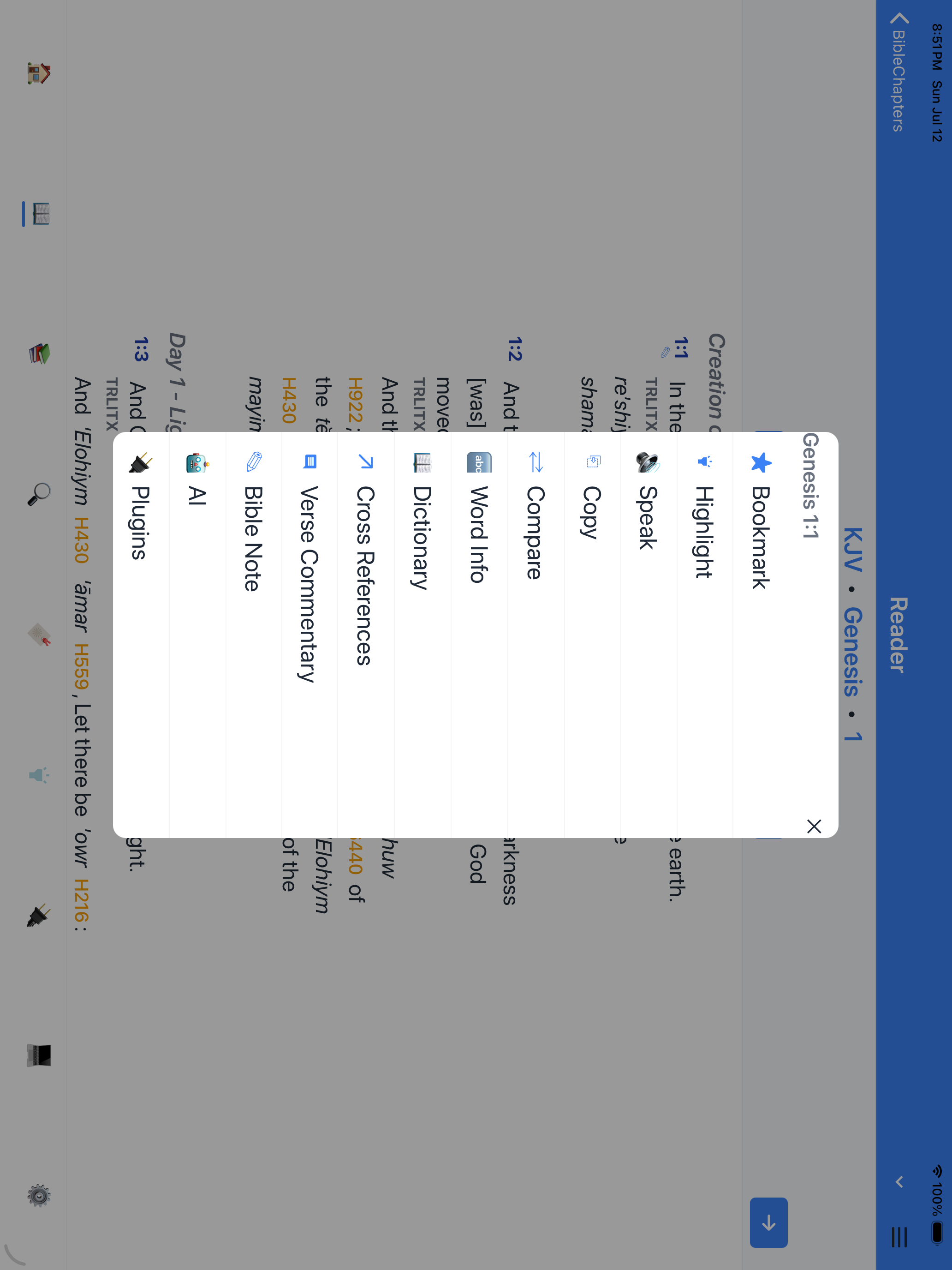
When you tap a verse number (or long-press verse text), the verse menu appears as a centered card over a dark backdrop.
- Copy and Share buttons are always visible at the top of the menu.
- Bookmarks and Highlights are shown with their current state.
- Commentary, Dictionary, and Compare open from the menu. On a tablet these tools may appear in a side panel or wide card once selected.
- Tap the backdrop or the close arrow to dismiss the menu.
Focus reader
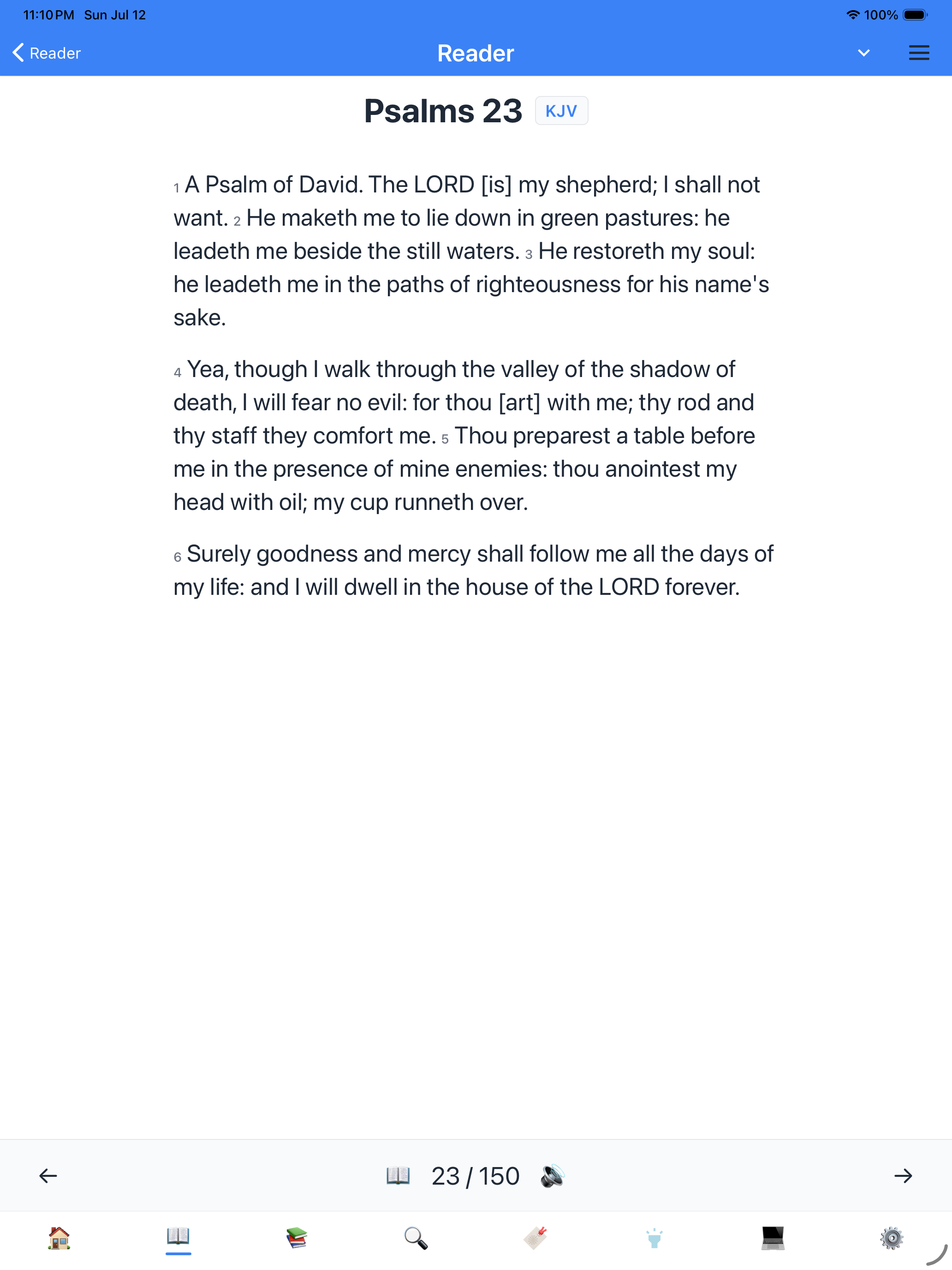
Focus mode strips away all the study chrome and leaves just the text — no verse numbers, no links, no buttons, no highlights. The page is centered with generous line spacing and comfortable margins, more like a printed book than a database. On a tablet, the wider canvas gives the text room to breathe, with line lengths that feel natural for extended reading.
Book Commentary
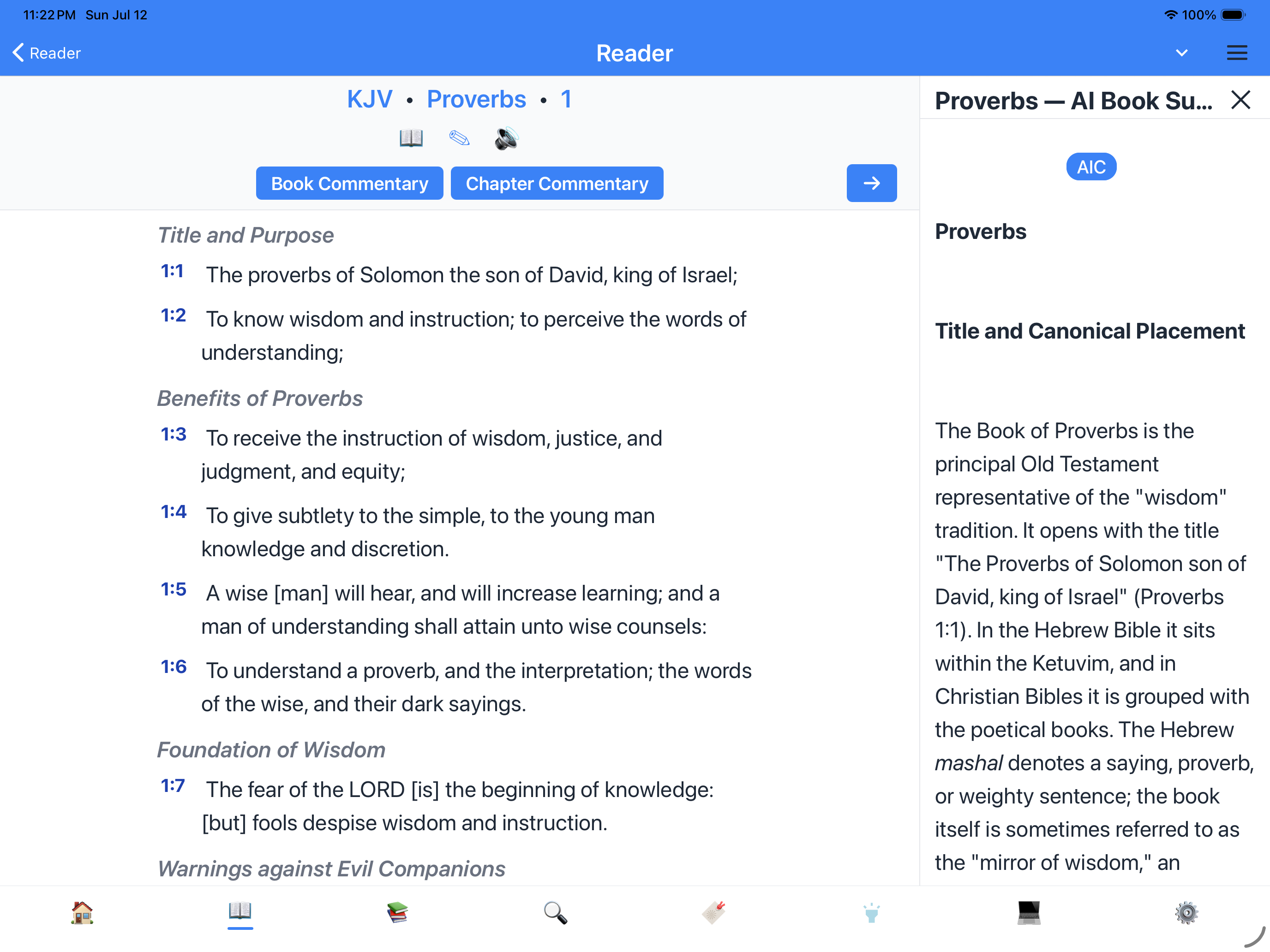
Book Commentary gives a high-level overview of the entire book — author, date, purpose, key themes, and structural outline. On a tablet it opens as a side panel beside the Bible text, so you can keep the overview in view while reading any chapter in the book.
Chapter Commentary
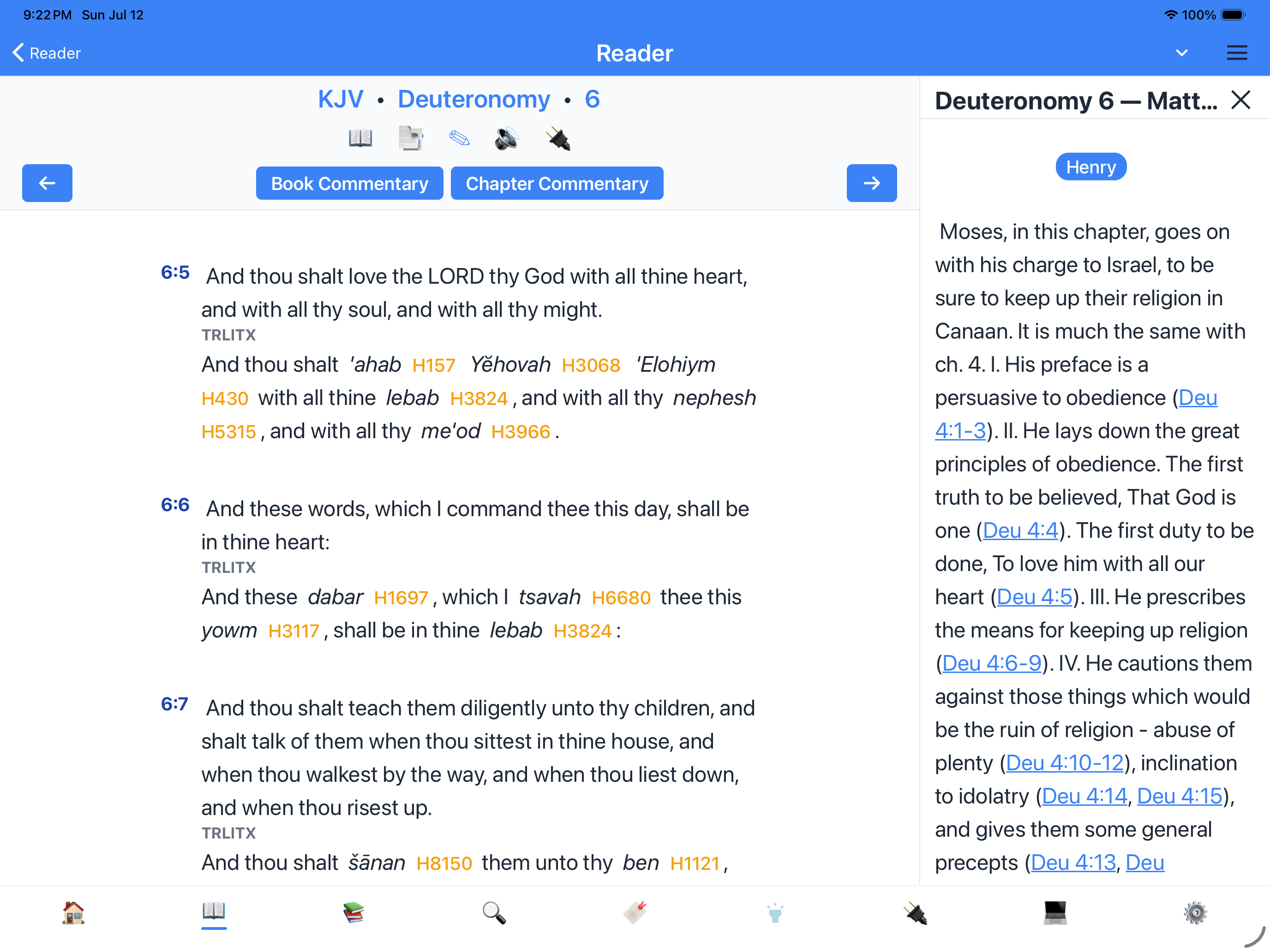
Chapter Commentary is accessed from the chapter commentary button at the top of the screen, not the verse menu. On a tablet it opens as a side panel just like Verse Commentary, so you can read the commentary and the Bible text together.
Verse Commentary panel
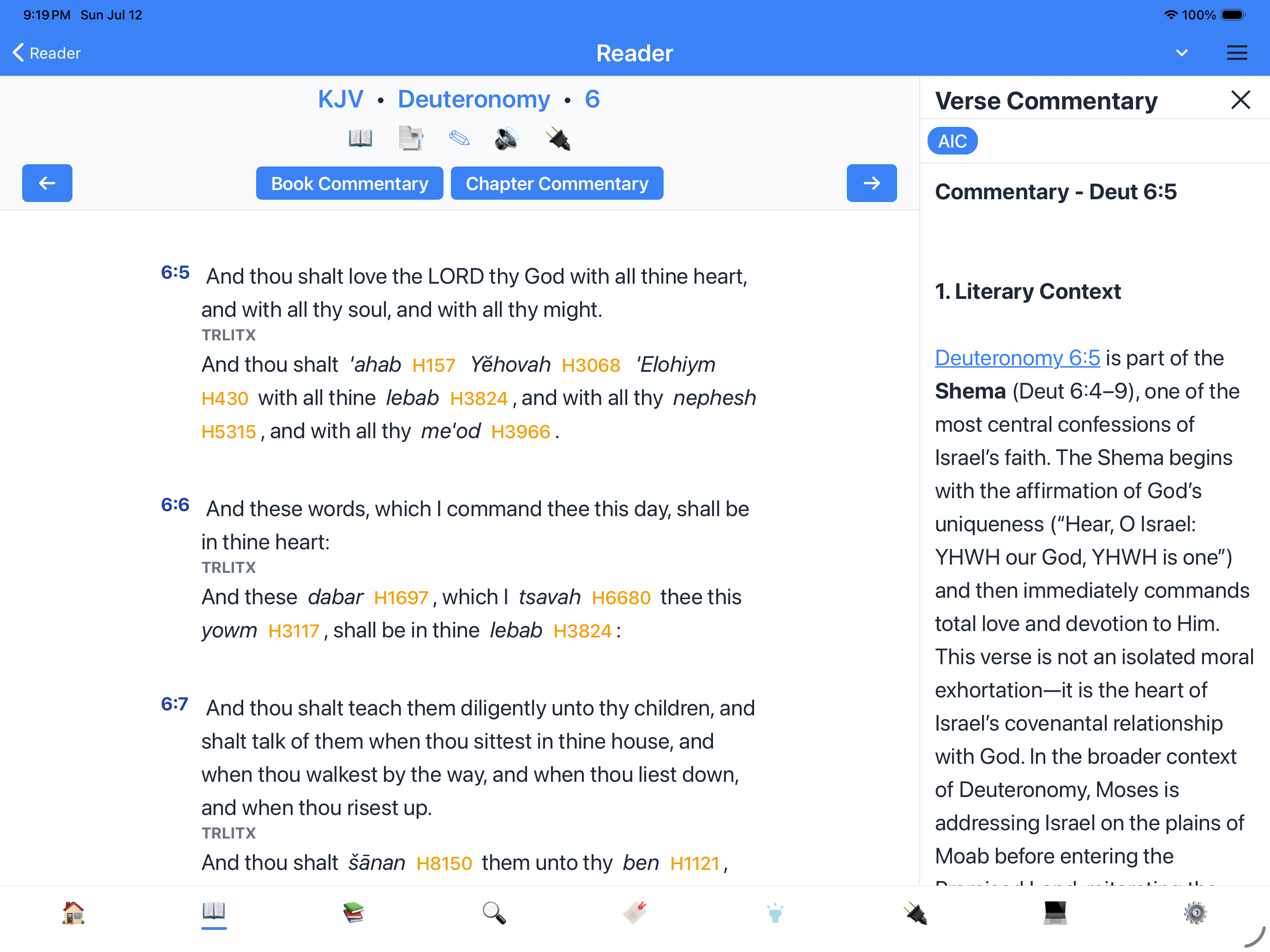
The Commentary tool opens a dedicated side panel on a tablet:
- Commentary text appears beside the Bible text.
- You can scroll commentary independently of the Bible.
- Tap the X or swipe away to close.
- A book icon at the top of the panel lets you switch commentary sources.
- A chapter icon lets you view chapter-level commentary.
On a phone, commentary opens as a full-screen modal.
Cross-references
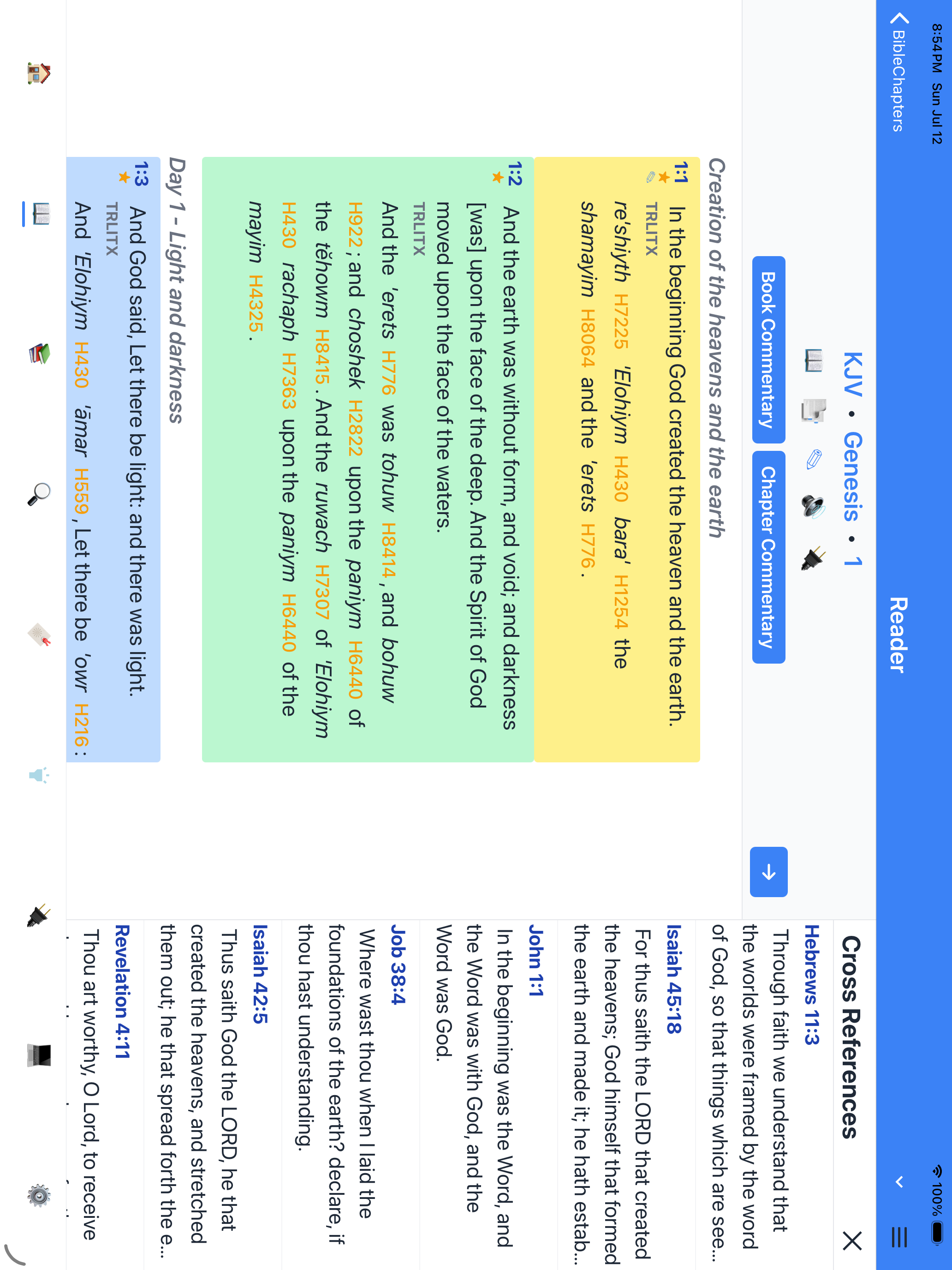
The Cross-references tool (verse menu → Cross-references) opens as a side panel on a tablet. It shows every related verse for the selected passage, and you can tap any related verse to jump to it in the reader. The cross-reference graph is dense and worth getting lost in.
On a phone, cross-references open as a full-screen modal.
Compare tab
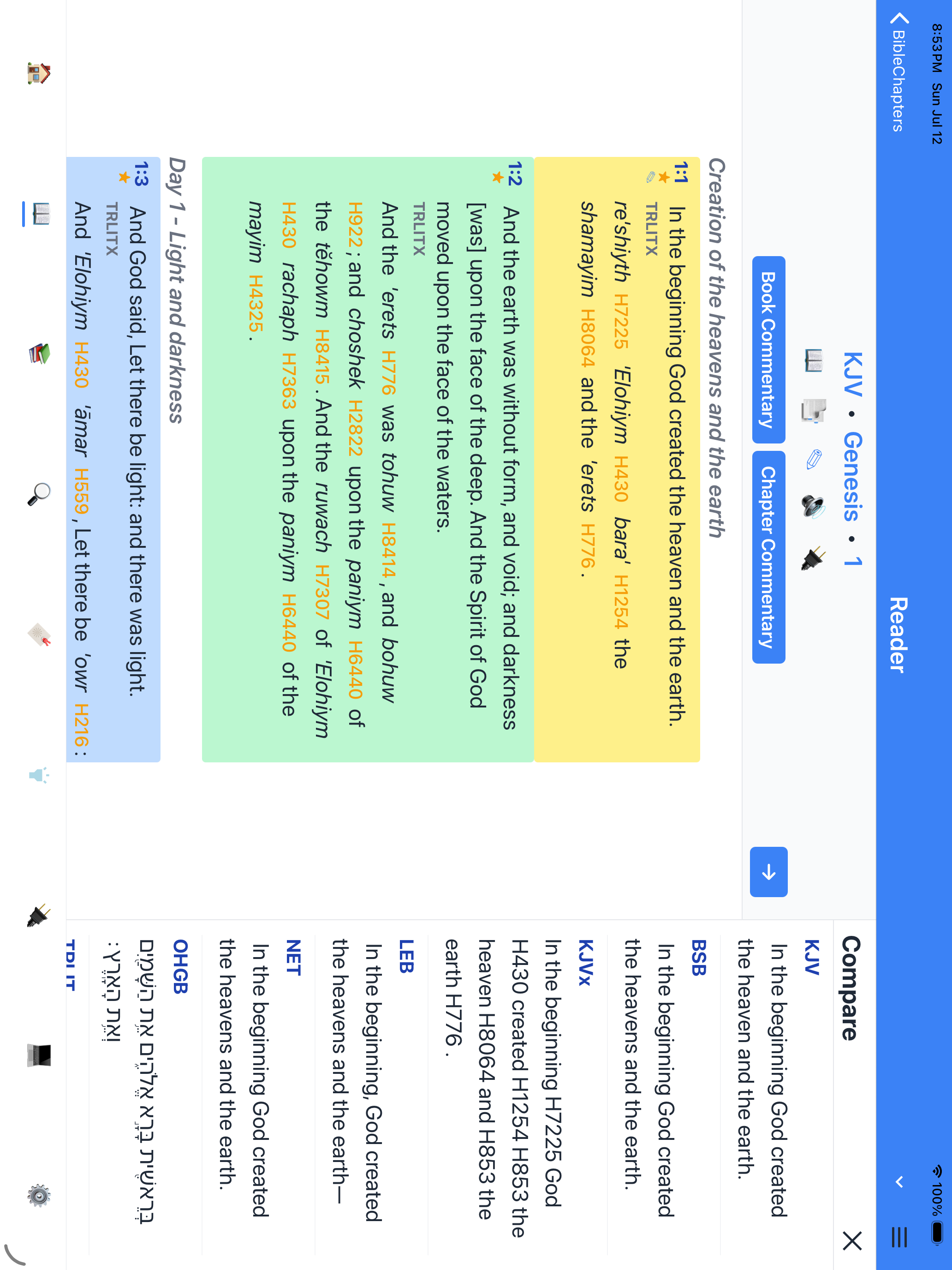
The Compare tab (in the verse menu) opens as a side panel on a tablet. It shows the selected verse in every parallel version you have enabled. You can tap any version to jump to that passage in the reader.
Dictionary / Strong's popup
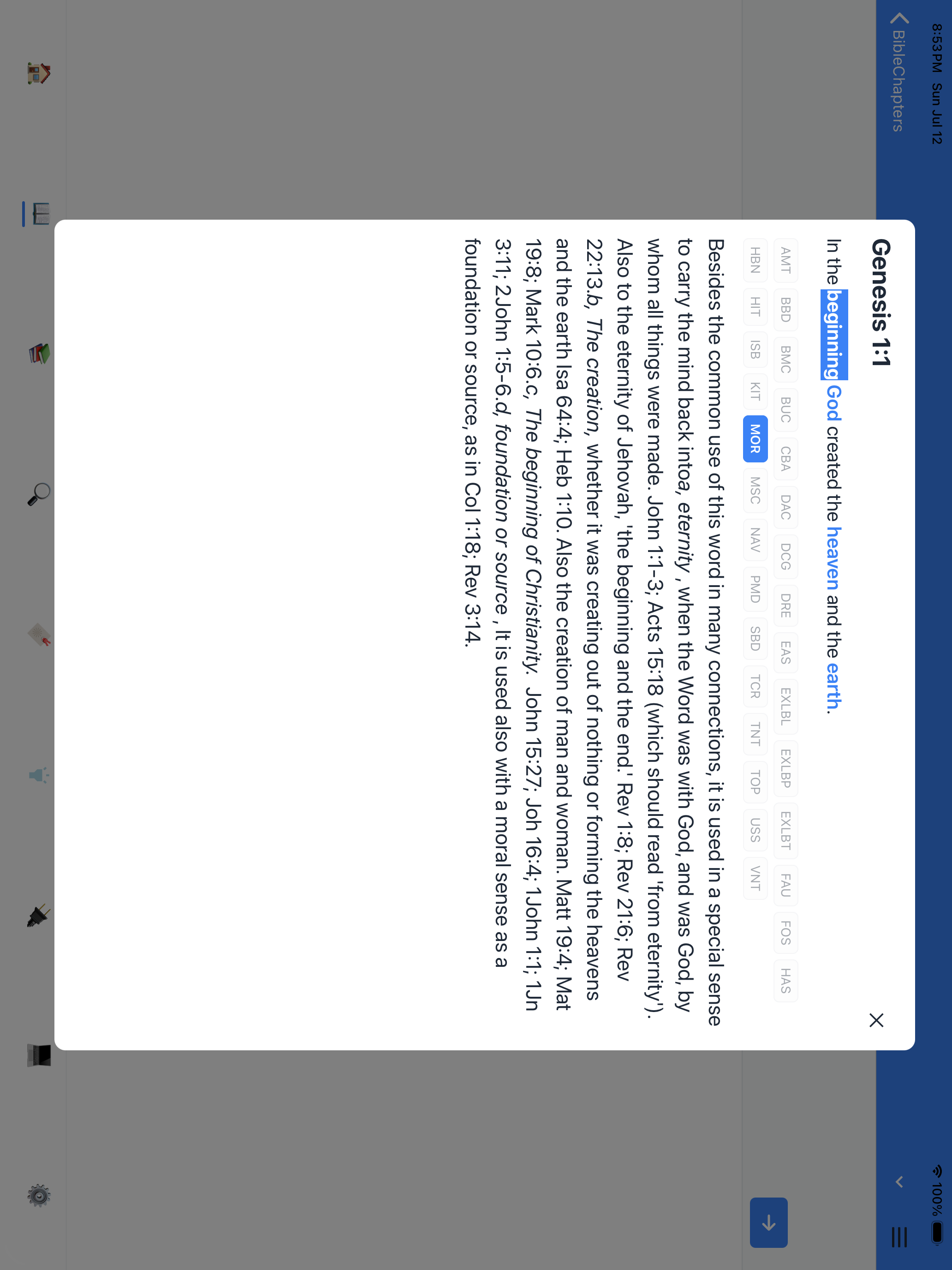
The Dictionary tool (verse menu → Dictionary) opens as a wide card on a tablet. It shows the Greek or Hebrew word, its transliteration, definition, and Strong's number. Tap the Concordance button to see every occurrence of that word in the Bible.
Tap a word to open its Lexicon
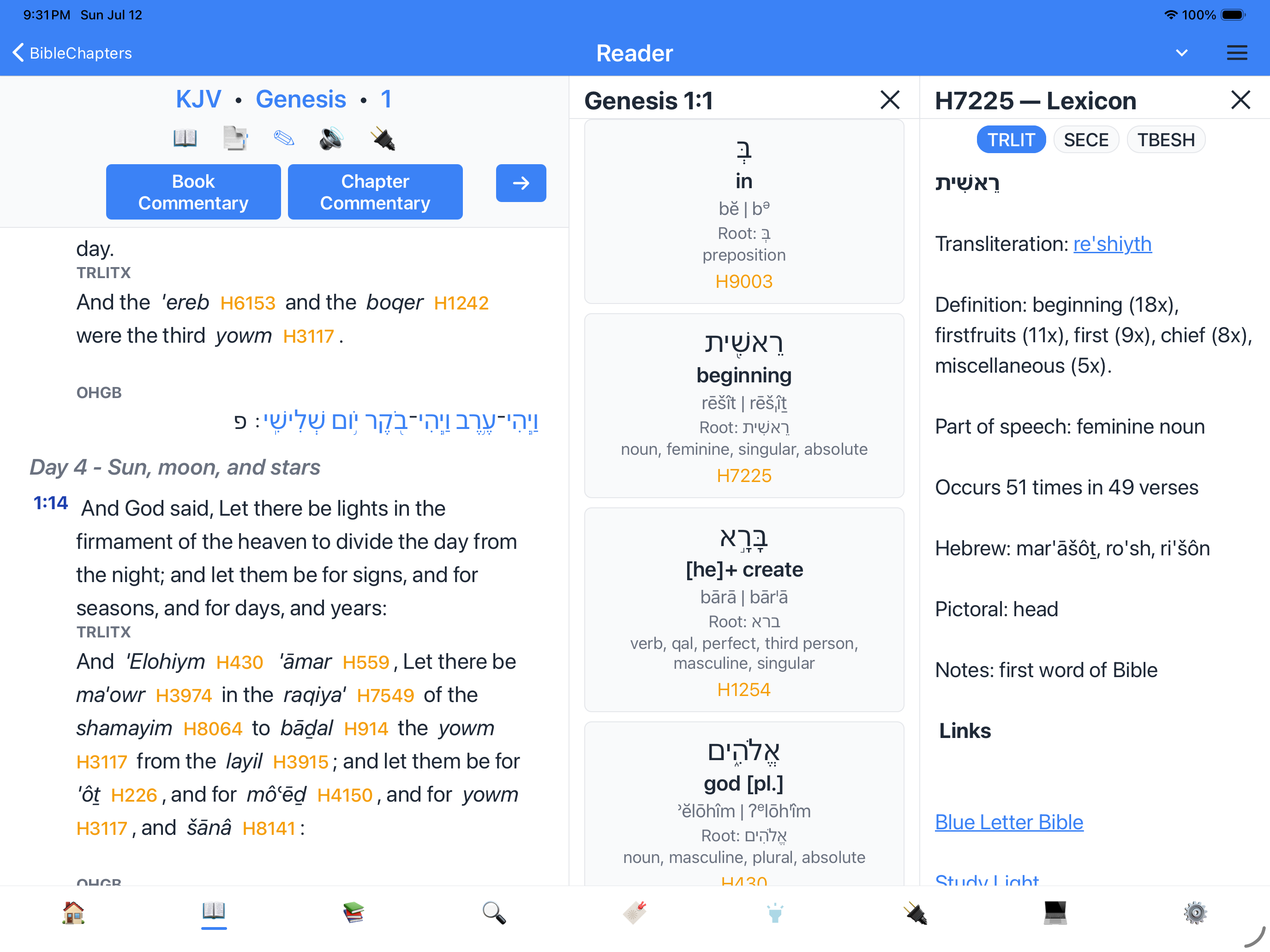
In the Word Info side panel on a tablet, each word card that has a Strong's number is tappable. Tap the card to open the Lexicon panel for that word directly. The Lexicon opens another panel when the Word Info panel is clicked on so you can keep studying without closing the reader.
On a phone, Word Info cards are not tappable because the screen is too small for two panels.
Parallel Bibles side by side
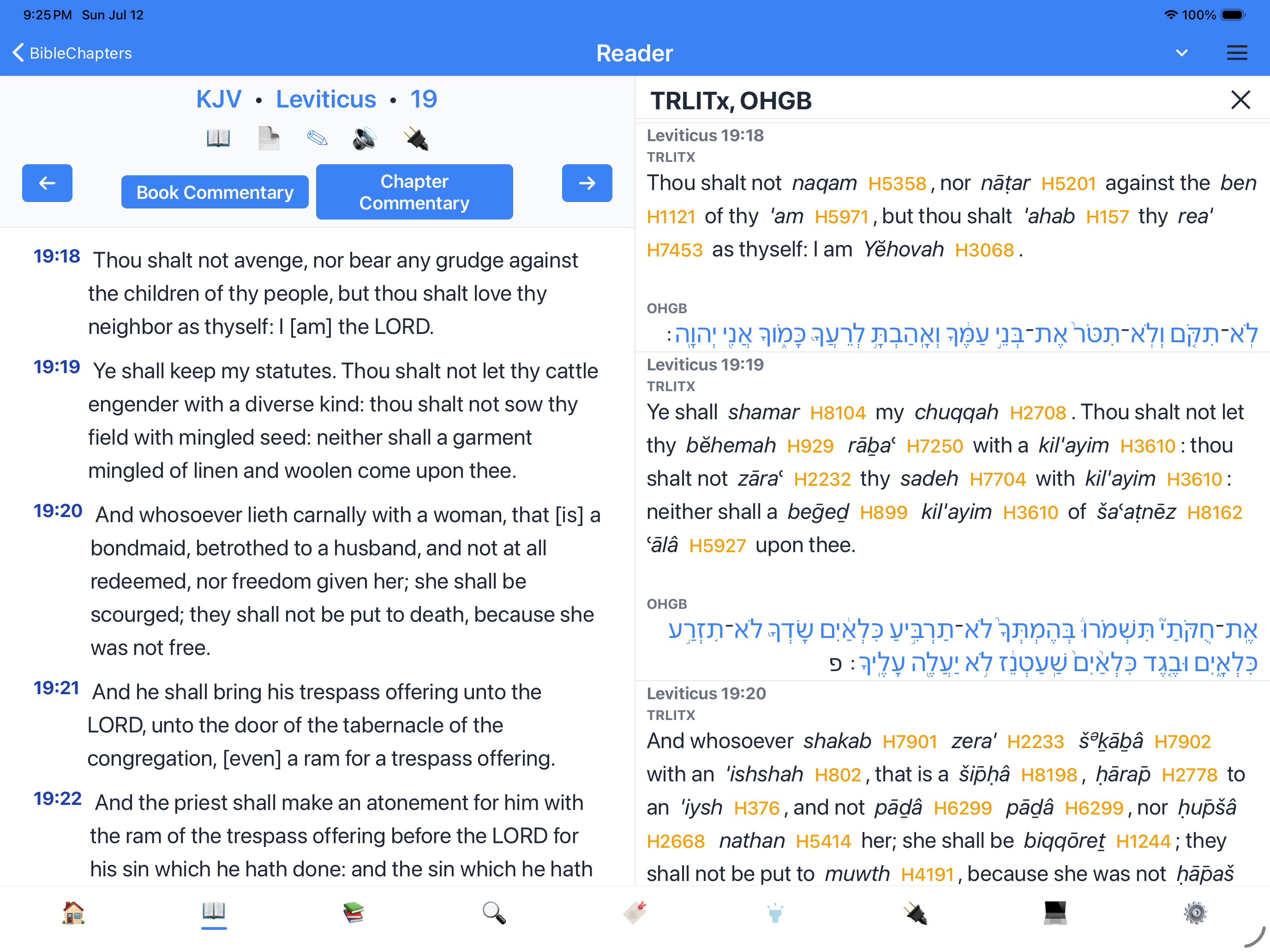
In Settings, tap Parallel Bibles and choose up to three versions. On a tablet, the versions appear as vertical panes next to each other:
- Each pane scrolls independently.
- You can tap a verse number to open a side panel with tools.
- The Compare tab shows all selected verses in one place.
- Tap the X on any pane to close it and return to a single-column view.
On a phone, parallel versions are shown one after another (vertically) instead of side by side.
Bookmarks split view
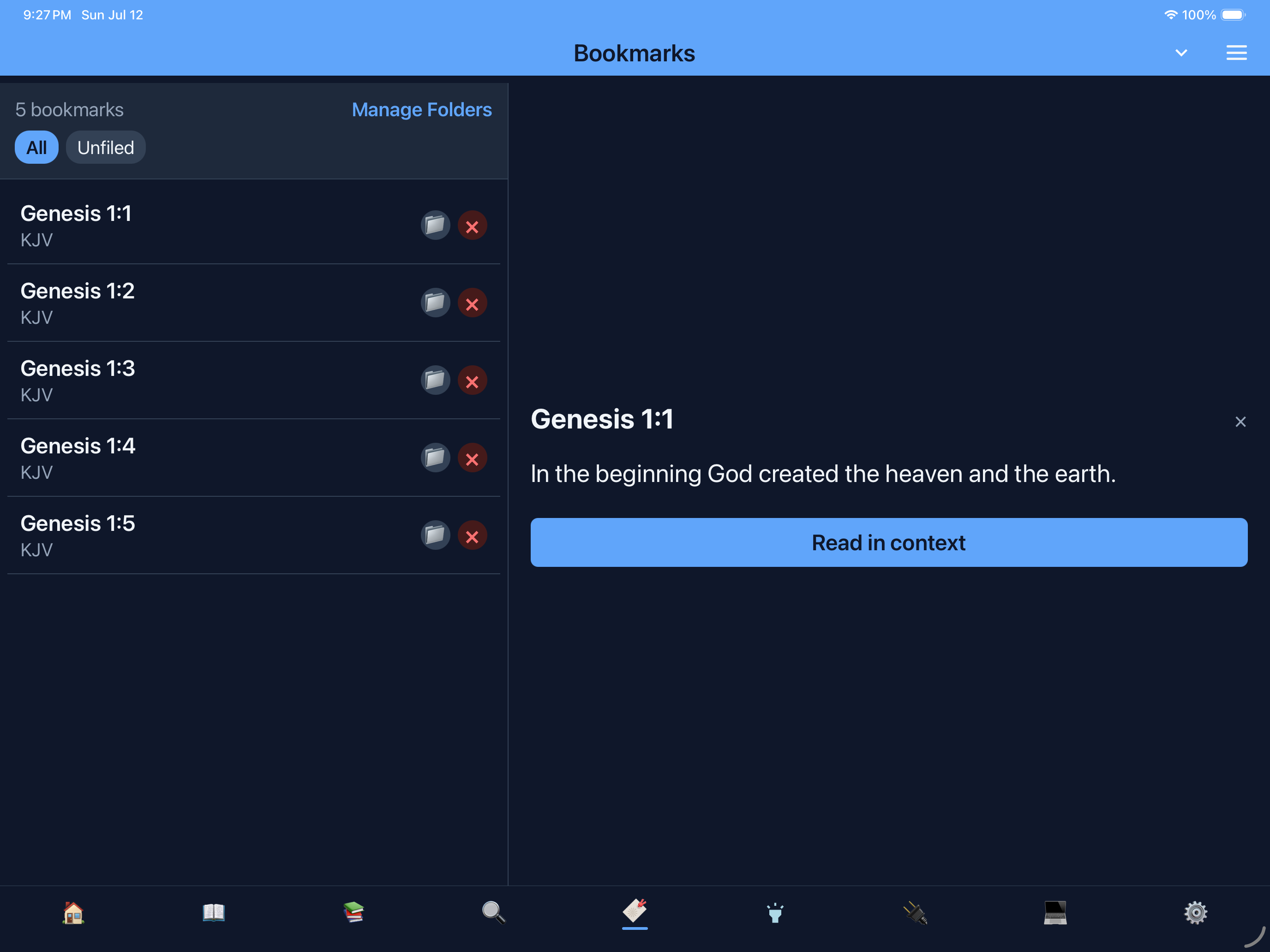
On a tablet, the Bookmarks tab uses a master-detail layout:
- Left side — the list of bookmarks.
- Right side — tapping an item opens a preview pane with the verse or passage text.
You can skim your saved items and preview them without leaving the tab. On a phone, tapping an item navigates to the reader screen.
Highlights
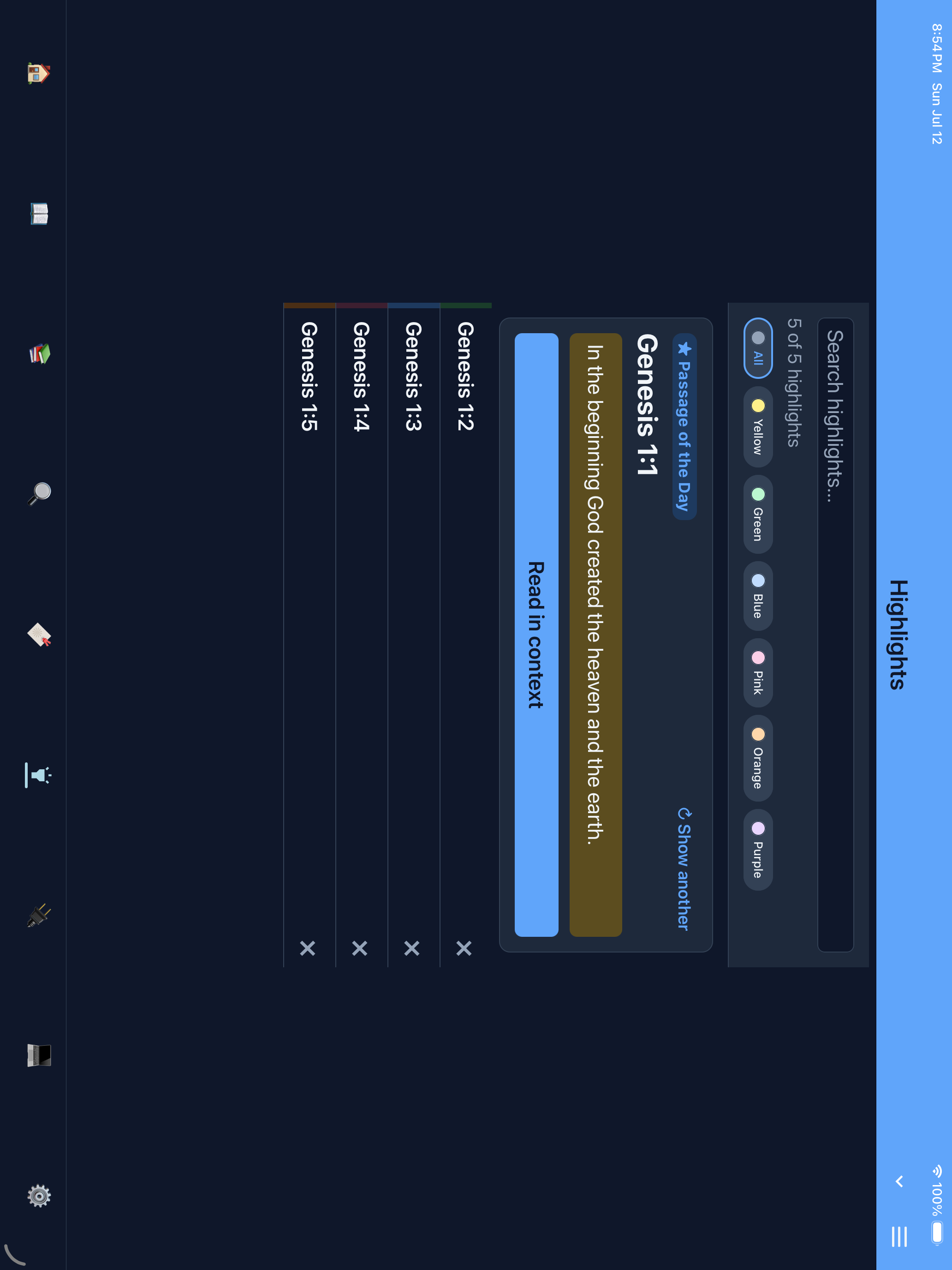
The Highlights tab shows all your highlighted verses in a single list. Tap any highlight to jump to that verse in the reader.
Notes split view
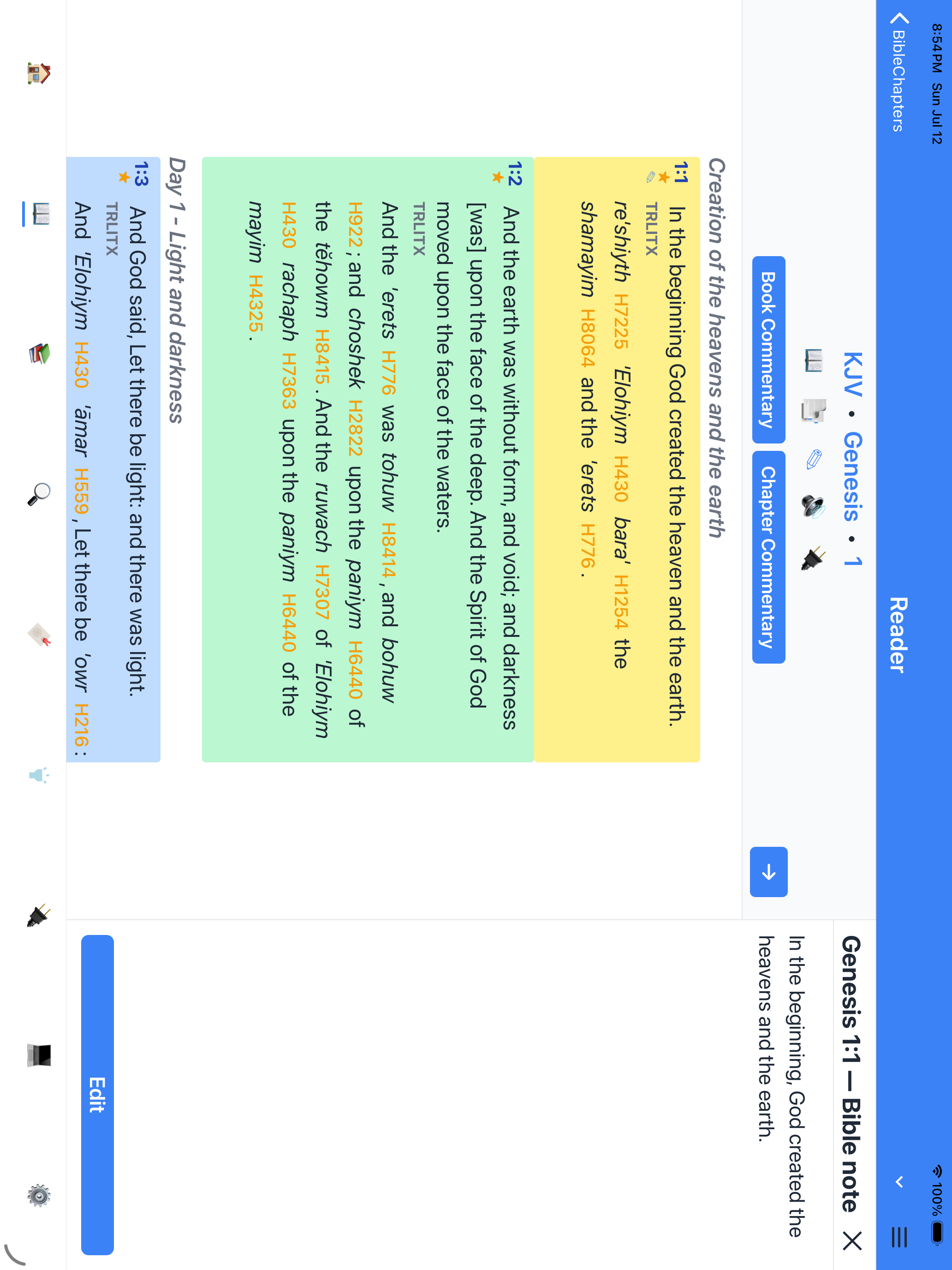
The Notes tab on a tablet shows your notes list on the left and the selected note on the right. Tapping a note opens it in a side panel so you can skim several notes in a row without leaving the list. Creating or editing a note also uses a side panel.
Search split view
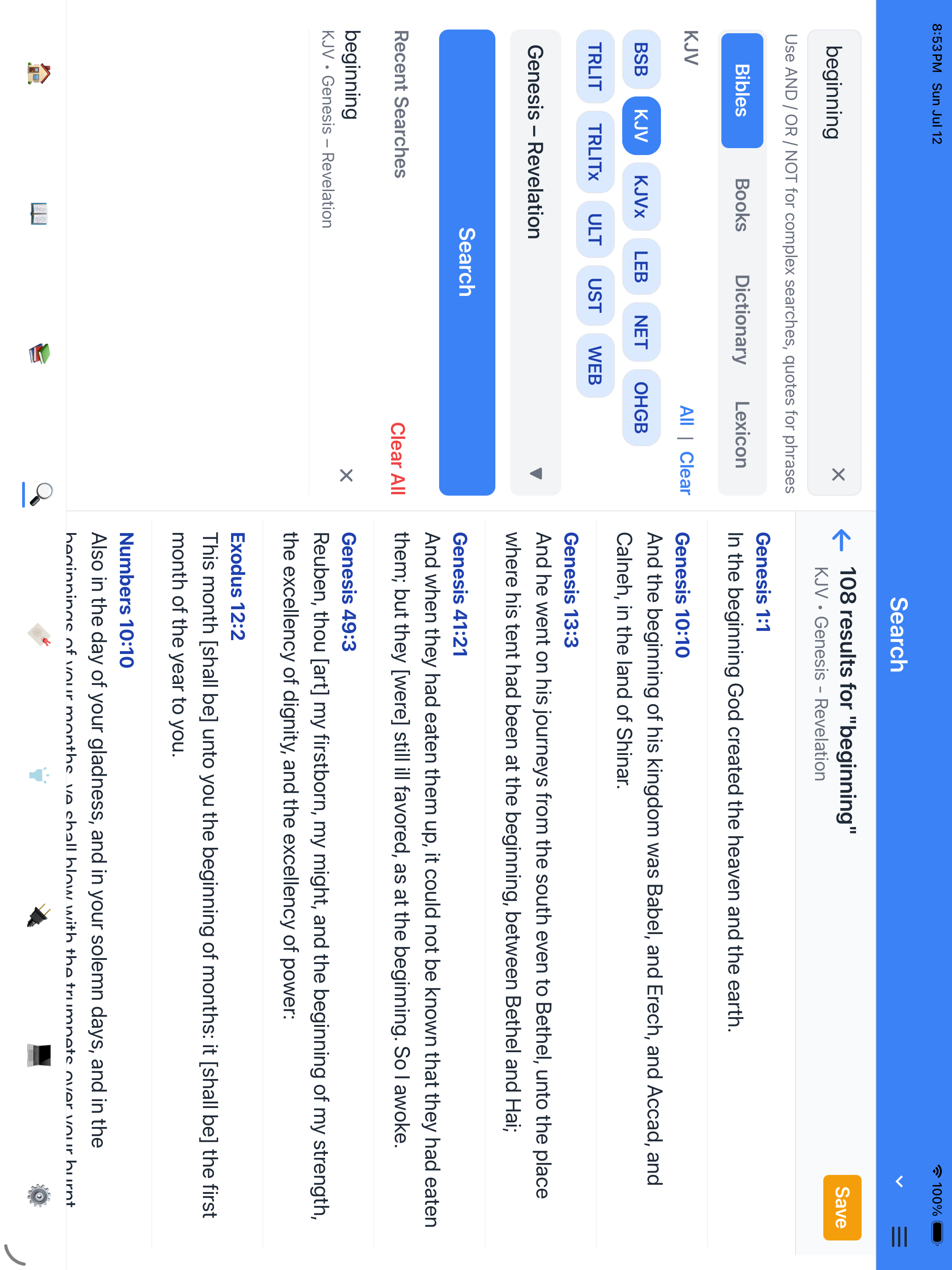
On a tablet, the Search tab shows the search form on the left and the results on the right as soon as you run a search. You can refine your query and watch the results update without changing screens. On a phone, search results open on a separate screen.
Settings category sidebar
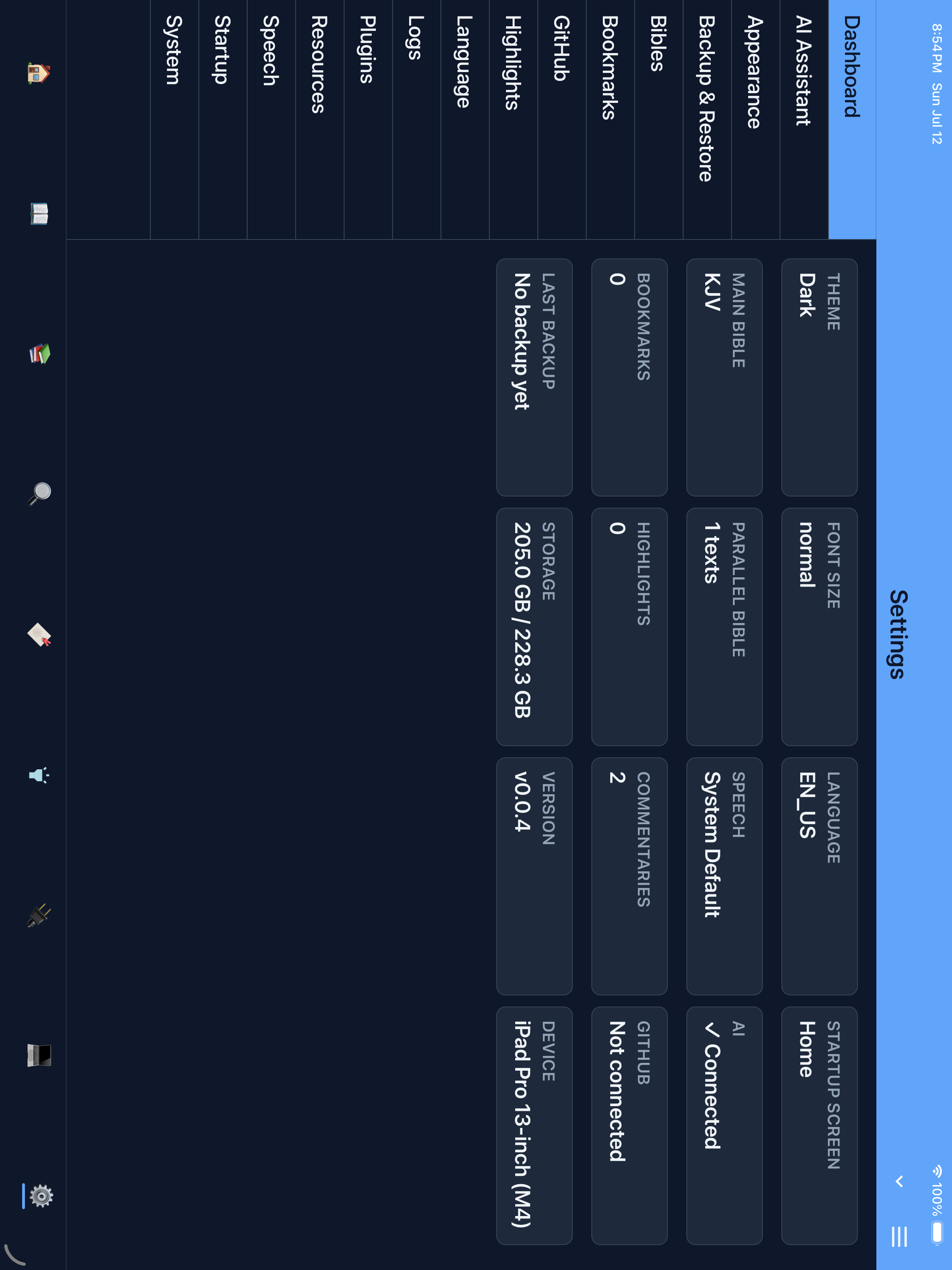
The Settings screen on a tablet shows a category list on the left (AI, Appearance, Backup, Bibles, etc.). Tap a category to jump directly to its settings on the right. Only the selected category is expanded, so you never need to scroll through the entire settings list.
Devotional reader
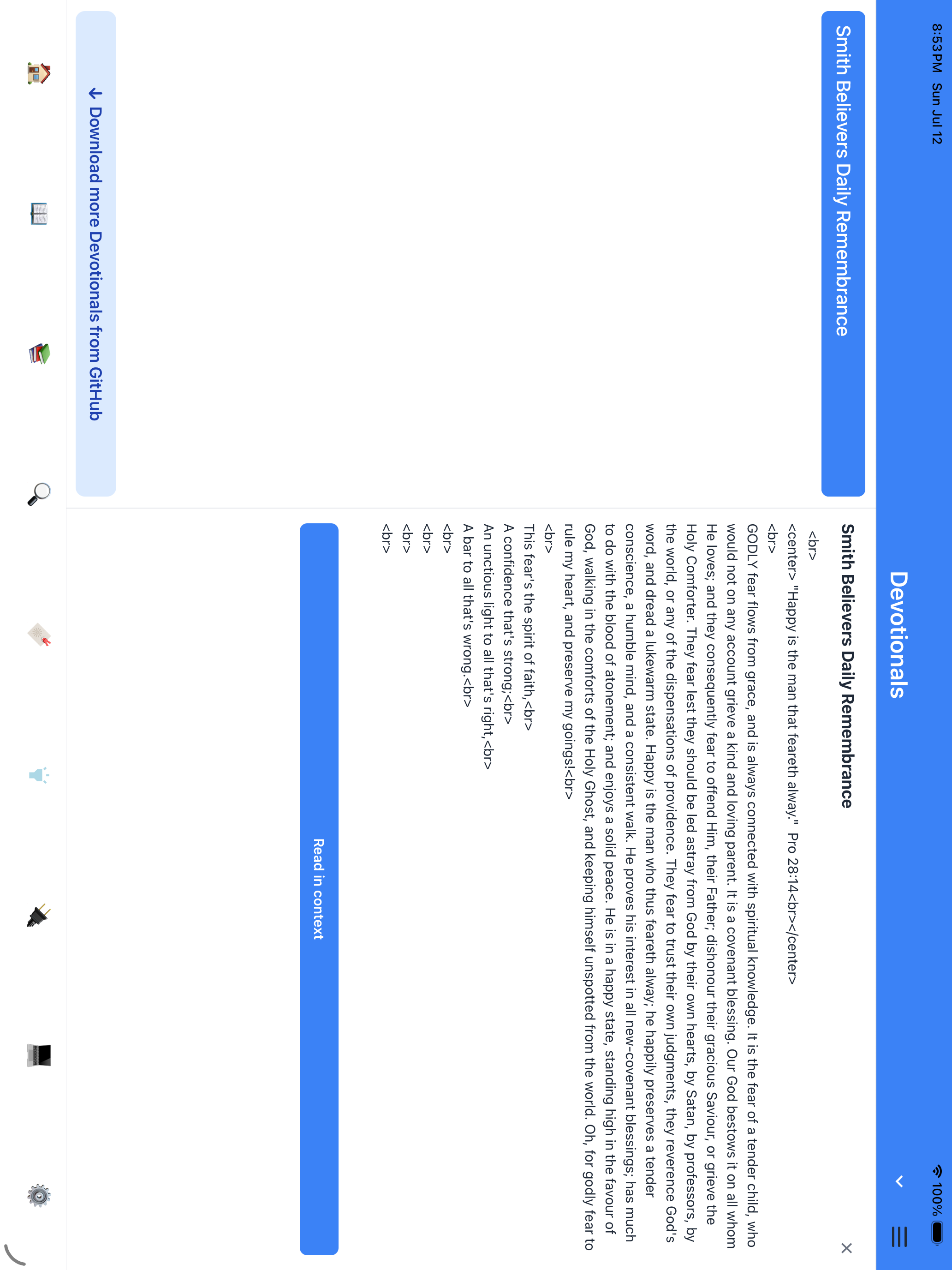
Theodia includes a devotional library with a classic devotional — Smith's Believer's Daily Remembrance — available offline. On a tablet, the devotional reader uses the extra width for comfortable text and larger touch targets, but remains a single-column view so the reading flows naturally. A calendar-style picker lets you read today's entry or jump to any date in the year.
Selected verse AI chat
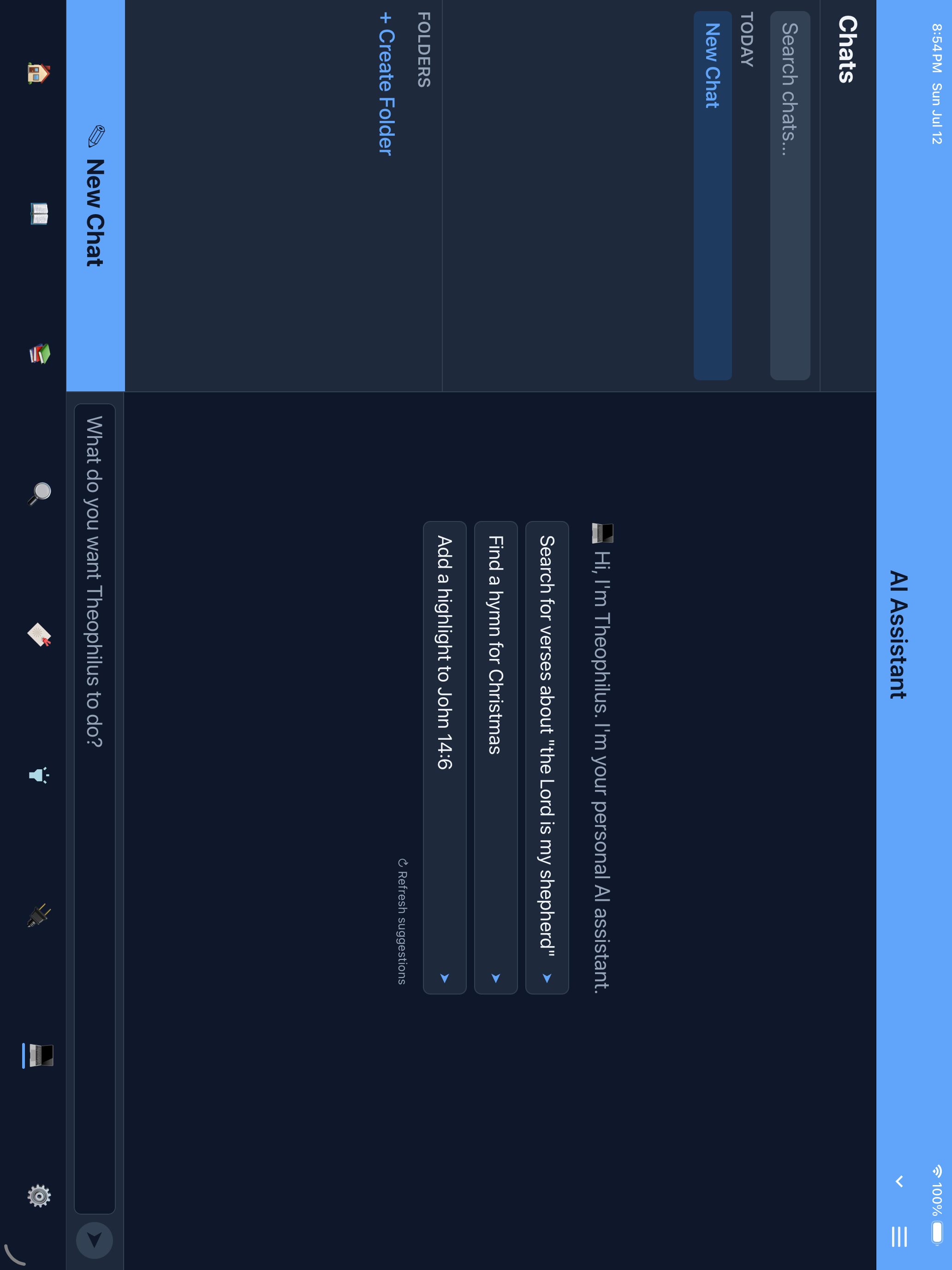
The AI chat opens in the verse menu side panel. It shows a conversation interface where you can ask questions about the selected verse. The AI response appears in the panel, and you can continue the conversation without leaving the reader.
Conversation sidebar in AI screen
In the AI tab on a tablet, the conversation list is always visible as a persistent left sidebar. You can switch between chats without opening a menu. The New Chat button is also always visible. On a phone, the conversation list is a popup drawer.
Landscape and portrait
Rotating the tablet adjusts the layout automatically. In landscape, side panels have plenty of room. In portrait, panels become narrower but still stay beside the text.
Summary
On a tablet, you get:
- Focus reader with comfortable line lengths on a wider canvas
- Book, Chapter, and Verse Commentary in persistent side panels
- Cross-references beside the Bible text
- Compare and Dictionary in wide cards
- Lexicon from a tap on any Word Info card
- Parallel Bibles in side-by-side vertical panes
- Bookmarks in a master-detail split view
- Notes with a list and editor side by side
- Search with inline results beside the search form
- Settings with a category sidebar
- AI chat in a verse menu side panel with a persistent conversation sidebar
- Landscape and portrait both supported with automatic layout changes
On a phone, everything uses the traditional single-column drill-down navigation. The app detects the screen width at launch and chooses the right layout automatically.